
Although Apple products are known for their durability, it’s important for buyers to understand warranty conditions and authenticity. This guide helps you check the originality and warranty status of Apple devices.
Checking an Apple device’s serial number and warranty status is essential for verifying authenticity and determining eligibility for service. Using the serial number, you can easily confirm whether the product is genuine and whether the manufacturer’s warranty is still valid.
The most common reasons for checking this include device malfunctions (hardware or software issues), or when purchasing a used device.
IMPORTANT: The manufacturer’s warranty does not cover all types of damage, so in some cases you may need assistance from an Apple service specialist.
If you want to check whether a device is still under warranty, you can easily do so on another iPhone or iPad signed in with the same Apple ID.
Open the Apple Support app
Tap on the Devices section to see all devices linked to your Apple ID
Select the desired device, then open Device Information
Here you can view detailed information about the device, including its warranty status.
You can also check this on Apple’s official website. Simply enter the device’s serial number, and the system will show whether your device has an active warranty (you should see a “Repairs and Service Coverage: Active” message).
Where to Find the Serial Number
Go to Settings → General → About
TIP: As an alternative, you can use the IMEI number for iPhones and some iPads, which can also be found on the SIM tray.
Additionally, the serial or IMEI number is often printed on the back of the device.
Click the Apple logo in the top-left corner and select About This Mac
The serial number can also be found on the bottom of MacBook, iMac, or Mac mini devices
On the paired iPhone, open the Watch app → General → About
You can also find it on the device itself: on the back or within the band slot (on Apple Watch Series 1 and newer models)
The serial number is printed on the label on the back of the box
You can also find it inside the charging case lid
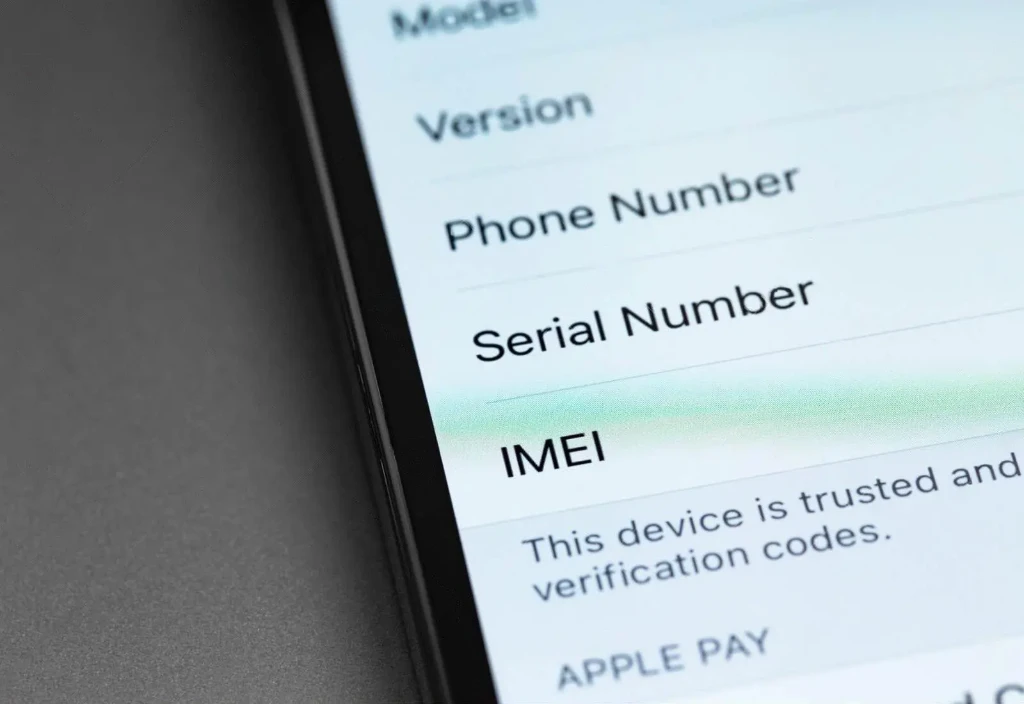
Before buying a used iPhone, it’s crucial to ensure the device is original and fully functional. Checking the serial number and verifying details through Apple can help you avoid counterfeit devices and unreliable sellers.
For maximum safety, we recommend purchasing used iPhones from trusted sources.
Don’t forget to verify the authenticity and warranty status of Apple products to ensure a secure and satisfying experience.
At MacSzerez, in addition to offering reliable refurbished devices, we also provide an extra 30-day warranty, giving our customers added peace of mind.
További cikkek
Hírlevél feliratkozás