
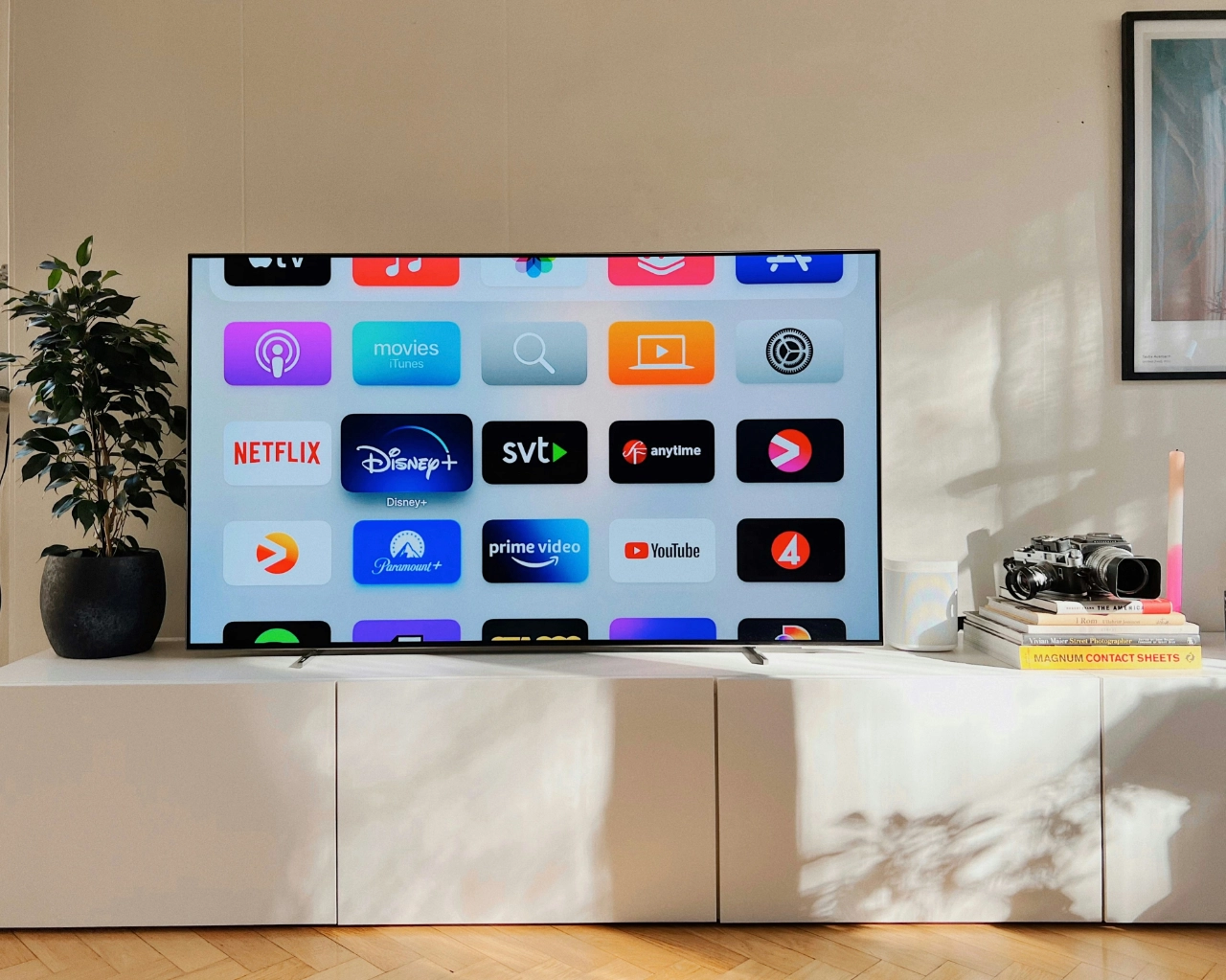
iPhone screen mirroring to a TV is a feature that allows you to display content from your iPhone on a larger screen, such as a television. This is especially useful for watching movies, presentations, or simply browsing, gaming, or viewing photos more comfortably.
iPhone screen mirroring most commonly works through Apple’s own technology, AirPlay. It creates a wireless connection between your iPhone and an Apple TV or an AirPlay 2-compatible smart TV.
To start screen mirroring on iPhone, follow these steps:
Connect your iPhone and TV to the same Wi-Fi network
Open Control Center on your iPhone
Tap the Screen Mirroring icon
Select your TV from the list of available devices
Enter the AirPlay code shown on the TV, if required
There are several ways to connect your iPhone to a TV, but the easiest and most modern solution is wireless AirPlay, which is also available on iPads (iOS 12 or later). You can use any of the following devices:
Apple TV: Fully supports iPhone screen mirroring
AirPlay 2-compatible smart TVs: Many manufacturers (e.g., Samsung, LG) offer such models
Samsung TVs: Newer models support iPhone screen mirroring via AirPlay
If none of these are available, an external adapter or a device like Chromecast (HDMI) can also help, although it does not use native AirPlay.
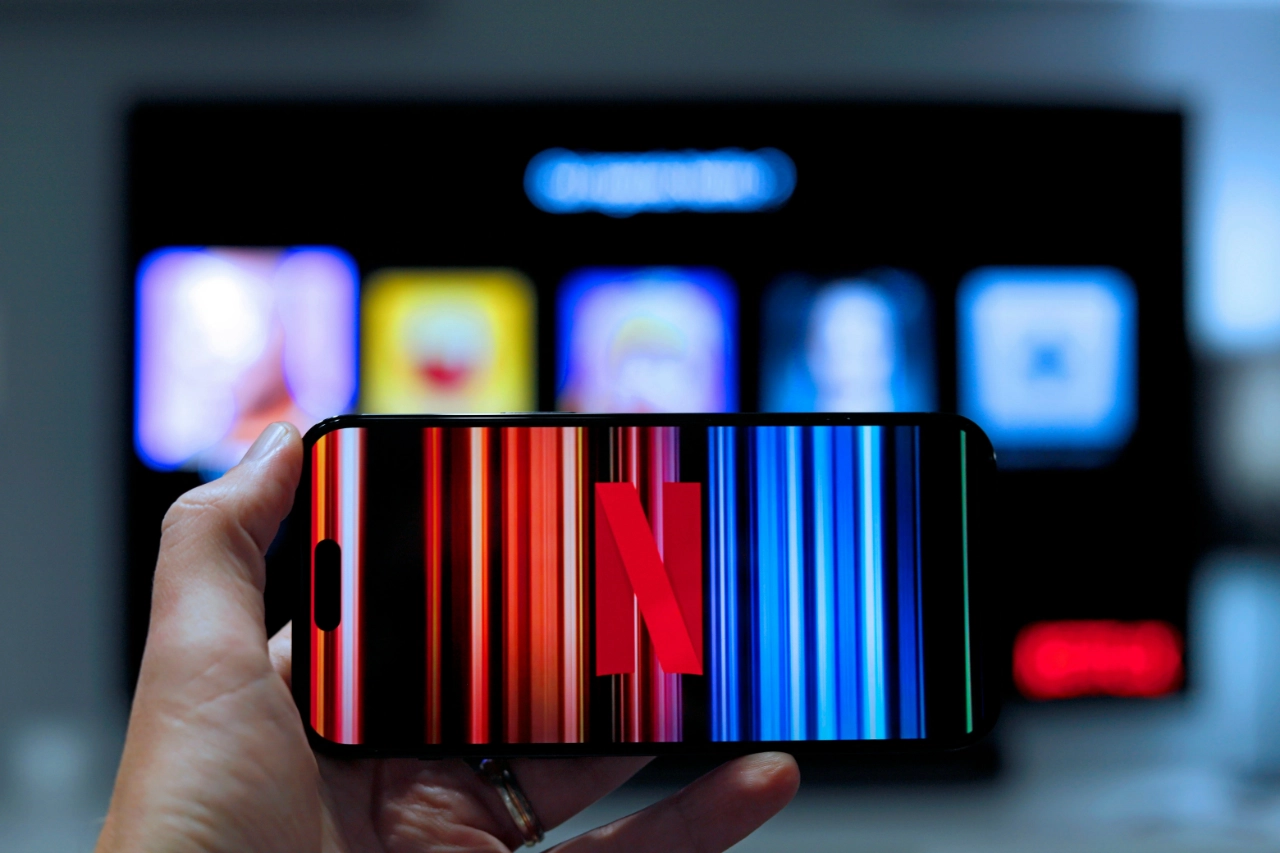
You don’t have to mirror your entire screen—specific content like videos or photos can also be streamed easily to a compatible TV.
Open the video you want to play (e.g., YouTube, Apple TV app, Netflix)
Tap the screen, then the AirPlay icon
Select your target device
Open the Photos app
Select the image you want to share
Tap the Share icon, then choose AirPlay
Screen sharing from Apple devices can work smoothly if you follow a few basic rules:
Stable Wi-Fi connection: Both devices should be on the same network, without heavy load
Minimal obstacles: Keep the phone and TV close with as few physical barriers as possible
Updated software: Both iOS and TV firmware should be up to date
Landscape mode: Content fits better on the TV screen
Uninterrupted performance: Close unnecessary apps to avoid interference
Many users look for specific solutions for mirroring iPhone to Samsung TVs. The good news: most newer Samsung smart TVs support AirPlay 2, so your iPhone screen can be shared wirelessly.
The process is the same as with other AirPlay-compatible devices.
Go to Settings > General > AirPlay & Handoff
Choose Automatic, Ask, or Never
This allows your iPhone to automatically recognize and connect to the selected display when available.
Wireless iPhone screen mirroring to a Smart TV is a practical and visually impressive solution that lets you share your content with others in excellent quality.
If you don’t yet have a compatible device and are considering buying an Apple TV or a newer iPhone, choose reliable, pre-owned Apple products from MacSzerez—and enjoy the big screen experience at a great price!

További cikkek
Hírlevél feliratkozás