
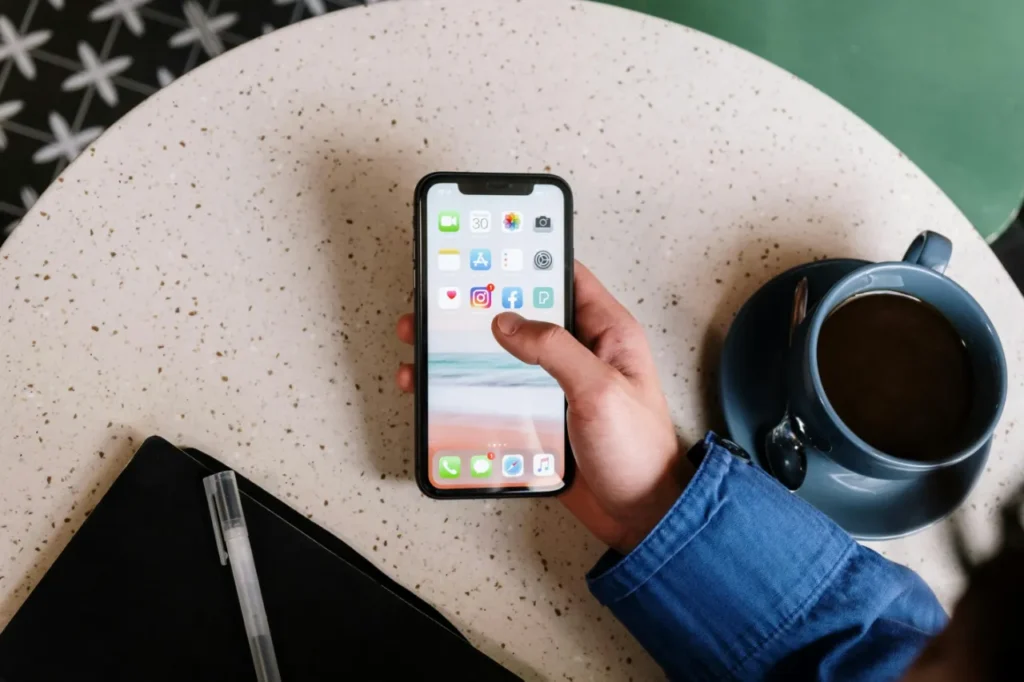
With iPhones, you can easily take screenshots that can be used for various purposes. Whether it’s a website, email, or content displayed in an app, taking a screenshot is always a useful feature. In this article, you’ll learn how to take screenshots on different iPhone models, including how to capture scrolling screenshots, which is now natively supported by iOS.
Taking a screenshot on iPhone is a simple process. Here’s how to do it on different models:

This feature allows you to capture an entire page without taking multiple screenshots.
Steps to take a scrolling screenshot:
If you want to take scrolling screenshots in apps that don’t support this feature, you can use third-party apps. One popular example is Picse, which lets you stitch multiple screenshots together.
Taking screenshots is even easier with Siri. Just say:
“Hey Siri, take a screenshot”, and the virtual assistant will automatically capture your screen.
This method is especially useful if you want to take a screenshot quickly without pressing buttons.
Screenshots are automatically saved in the Photos app, where you can find them in a dedicated album. From there, you can easily share them via messages, email, or directly on social media platforms.
Whether you’re using a newer iPhone like the iPhone 14, iPhone 13, or older models like the iPhone 7, taking screenshots is quick and simple. In addition to native features, third-party apps offer even more possibilities, such as capturing scrolling screenshots. Siri integration makes the process even faster, allowing you to capture your screen in seconds.

További cikkek
Hírlevél feliratkozás