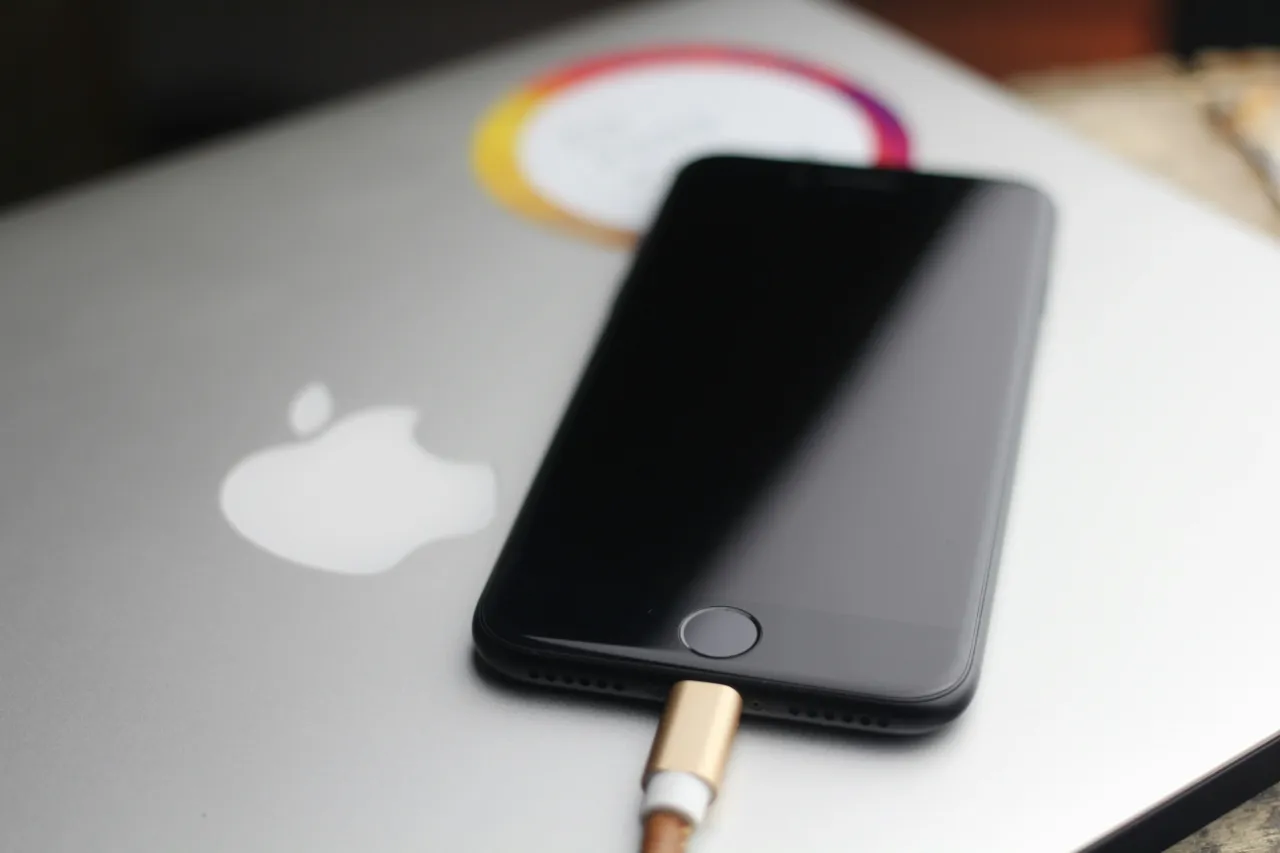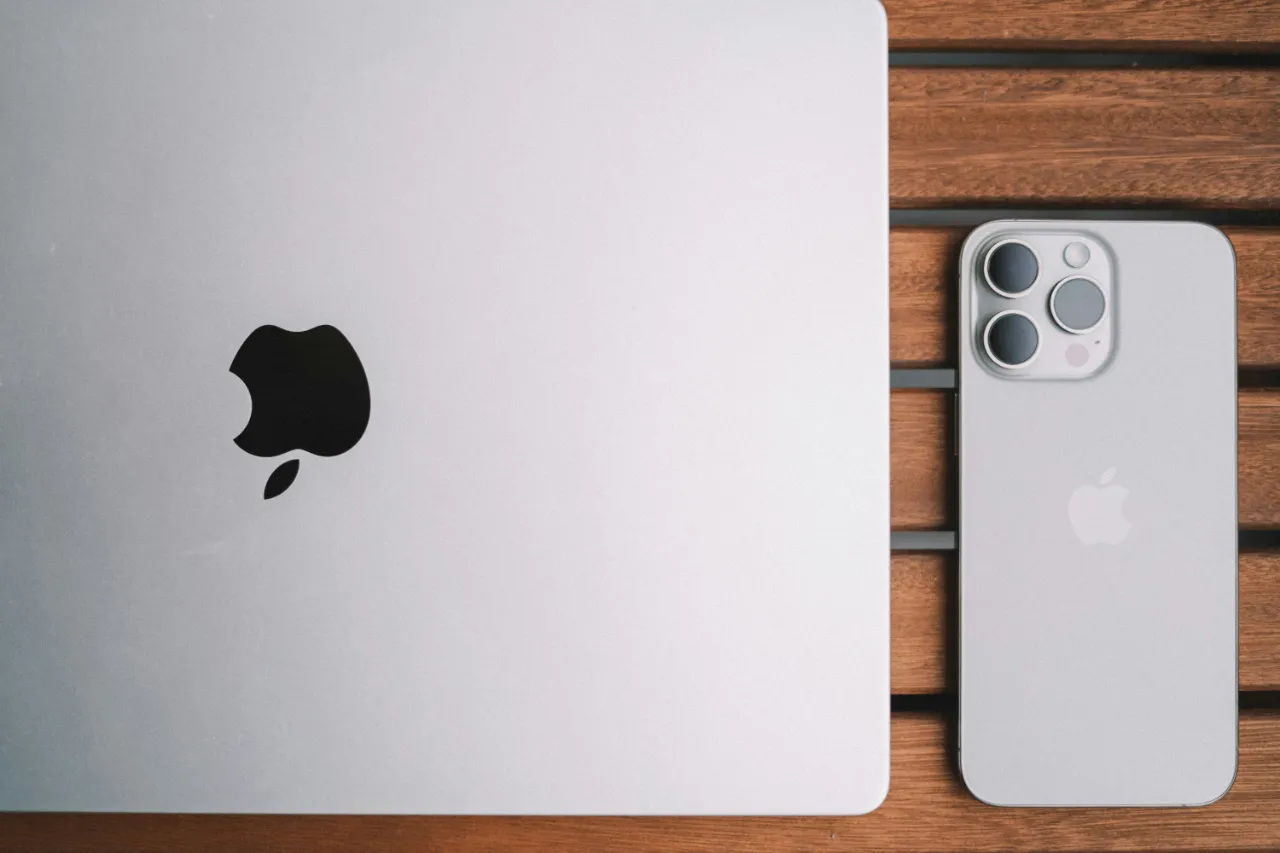
One of the biggest advantages of the Apple ecosystem is how seamlessly its devices communicate with each other. If you use an iPhone and a MacBook, you can easily connect them to transfer files, photos, or other data. In this guide, we’ll show you how to connect your iPhone to a MacBook and what methods you can use to transfer your data.
Connecting iPhone to MacBook with a USB cable
The simplest way to establish a connection between your iPhone and laptop is by using a USB cable. Finder will automatically recognize the connected iPhone and allow you to copy files or create backups.
Connect your iPhone to your MacBook using a Lightning–USB or USB-C cable
Open the Finder app, then click on your iPhone in the sidebar
Here you can sync files or manually drag and drop the content you want
Transferring data with AirDrop
Thanks to AirDrop, wireless file transfer between iPhone and MacBook is fast and convenient. All you need to do is enable AirDrop on both devices.
Turn on Wi-Fi and Bluetooth on both devices
On your iPhone, open the file you want to transfer and select Share > AirDrop
Your MacBook will appear among available devices—tap it, and the transfer will happen within seconds
This method is especially useful for quickly sending photos, videos, or documents.

Using iCloud for iPhone data transfer
If you want your files to sync automatically, iCloud Drive is the best solution. This method works even if the two devices are not directly connected.
Sign in to both devices with the same Apple ID
Enable iCloud Drive in Settings (on both iPhone and MacBook)
Save your files to the iCloud folder, and they will be accessible from both devices
This is particularly useful if you frequently work with the same files across multiple devices.
Other options for iPhone data transfer
Many third-party apps also support data transfer between iPhone and MacBook, such as Google Drive. These are especially useful when sharing large videos or documents.
It’s important to always use a reliable connection—whether wired or wireless—to avoid data loss or corrupted transfers.
Make the most of the features offered by Apple devices, and get the best out of the connection between them!
If you need further advice or assistance, feel free to contact the MacSzerez expert team or visit our store on Attila Street!